How to add custom words to Mac Dictation
Dictation keeps spelling a colleague's name, your product or your jargon wrong, and there is no obvious place to fix it. Here is what macOS 27 offers, step by step, and where each option falls short.
By the Crodo team · Updated · 8 min read
Can you add custom words to Mac Dictation?
No. Standard macOS Dictation, including in macOS 27, has no custom vocabulary setting. Apple's custom vocabulary belongs to Voice Control, which accepts up to 1,000 terms under System Settings > Accessibility > Voice Control > Vocabulary. Voice Control replaces Dictation while it is on, so the alternatives are Text Replacements or a dictation app with a dictionary.
Does Mac Dictation have a custom vocabulary?
No. Apple's macOS 27 Dictation guide covers the shortcut, languages, microphone and Auto-punctuation, and mentions no list of words to add. Apple's custom vocabulary belongs to Voice Control, a separate accessibility feature that replaces Dictation while it is on.
Apple's Dictation guide for macOS 27 lists what you can change in System Settings > Keyboard > Dictation: the shortcut, languages, microphone source and Auto-punctuation. The correction tool it describes works afterwards: ambiguous words are underlined in blue, and you can click one to pick an alternative or type the right word.
MacRumors reports that macOS 27 Golden Gate, released on 14 September 2026, improved on-device dictation, with fewer mistakes in spelling, punctuation and capitalisation, on Macs with an M3 or later chip and at least 12GB of memory. Neither MacRumors nor Apple's Dictation guide mentions custom vocabulary.
| Option | What it does | Helps standard Dictation? |
|---|---|---|
| Voice Control Vocabulary | Teaches Voice Control up to 1,000 terms and how you say them | No. Voice Control replaces Dictation while it is on |
| Text Replacements | Swaps a shortcut for a phrase in supported apps | Not documented. Test it, or apply it afterwards |
| Contacts | Names may be used as context by Siri and Dictation | Possibly. Apple does not promise it |
| Learn Spelling | Stops spell check flagging a word | No effect on recognition is documented |
How to add words with Voice Control Vocabulary
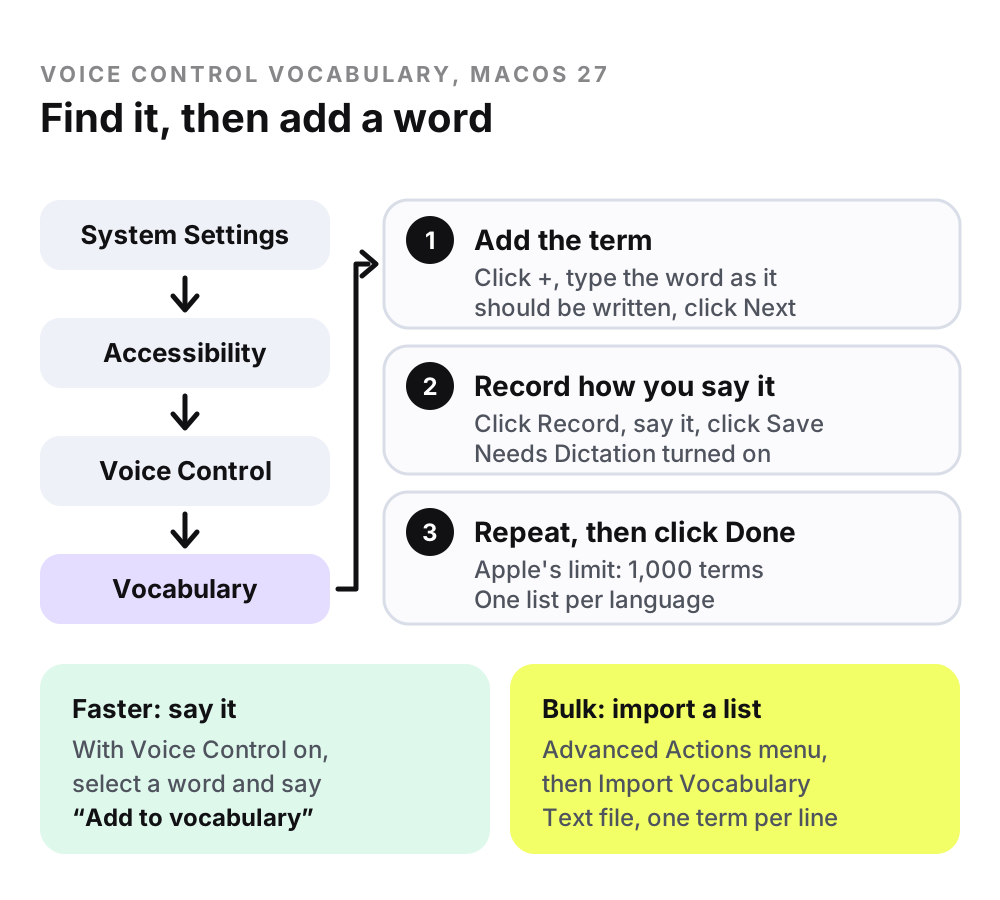
Open System Settings > Accessibility > Voice Control, click Vocabulary, click the Add button, type the term and click Next. Apple allows up to 1,000 terms, and you can record how you say each one if Dictation is turned on.
- 1
Choose Apple menu > System Settings, click Accessibility in the sidebar, then click Voice Control (you may need to scroll down).
- 2
Click Vocabulary. If it is dimmed, the language selected for Voice Control does not support a custom vocabulary.
- 3
Click the Add button (+), type the word or phrase exactly as you want it written, then click Next.
- 4
Click the Record button, say the phrase, then click Save. If Dictation is off, click Save Without Recording and record it later.
- 5
Repeat for each term, then click Done.
Control-click a term to record, rerecord or delete its pronunciation. If you use Voice Control in more than one supported language, each can have its own list.
What does turning on Voice Control do to Dictation?
It replaces it. Apple says that when Voice Control is on, you dictate with Voice Control and standard macOS Dictation is not available. Your vocabulary only applies while Voice Control is listening, and it listens for commands as well as text.
Voice Control is built for running a Mac by voice, so it behaves differently from shortcut-driven Dictation. Apple's macOS 27 guides describe the differences:
- It keeps listening for commands such as "Open Mail" as well as text until you pause it. Say "Stop listening" to pause and "Start listening" to resume.
- It has modes. In the default Dictation mode, anything that is not a command is typed. Say "Command mode" to accept only commands, and "Dictation mode" to go back.
- It needs a one-time download from Apple the first time you turn it on. After that it works offline.
- The vocabulary stays with Voice Control. Apple never says standard Dictation uses it.
It suits people who already use Voice Control, or who dictate long, jargon-heavy documents in one sitting. For quick messages, toggling it is clumsy. Its spoken commands also differ from the standard Mac dictation commands.
Does adding names to Contacts help Dictation recognise them?
Possibly, but Apple does not promise it. Apple's privacy statement lists contact names, nicknames and relationships among the data that may help Siri and Dictation recognise what you say. Advice to add names to Contacts mostly comes from old forum posts.
Apple's Siri, Dictation & Privacy statement says that when you use Siri and Dictation, your device may send contextual data to Apple, including contact names, nicknames and relationships, to help your device understand you and recognise what you say. That passage is written around iOS devices, and Apple does not call it a vocabulary feature or say how much it helps.
The tip appears in a 2017 Apple Community thread on macOS Sierra, where a community user, not Apple, wrote that Dictation uses names in Contacts to improve recognition. It costs nothing to try: add the person with the spelling you want, then dictate a sentence using the name.
Do Text Replacements work with dictated text?
Apple does not say. Its macOS 27 guide presents Text Replacements as automatic substitutions in supported apps and never mentions Dictation. A related substitution, smart quotes, reportedly skips dictated text, but you can apply your replacements afterwards with Replace All.
You create them in System Settings > Keyboard > Text Replacements, and Apple notes they are not available in all apps. In a 2021 Apple Community thread about macOS Monterey, a Community Specialist on Apple's forum agreed that smart quotes, a related automatic substitution, work with typing but not when dictating.
How to test it on your Mac
- 1
Note the wrong spelling Dictation keeps producing, for example "Shivon" for "Siobhan".
- 2
In Keyboard settings, add a Text Replacement from the wrong spelling to the right one.
- 3
Open TextEdit and dictate a sentence with the name.
- 4
If the wrong spelling survives, choose Edit > Substitutions > Show Substitutions, make sure Text Replacement is ticked, then click Replace All (or select text and click Replace in Selection).
That final step is documented by Apple and is the dependable way to combine the two: dictate first, then fix the whole document in one pass, in any app with the Substitutions menu.
What is the difference between recognition hints and find-and-replace?
Recognition hints tell the speech engine which words to expect before it transcribes, so the right word is more likely to be heard in the first place. Find-and-replace edits the text afterwards, so it only fixes mistakes that come out the same way every time.
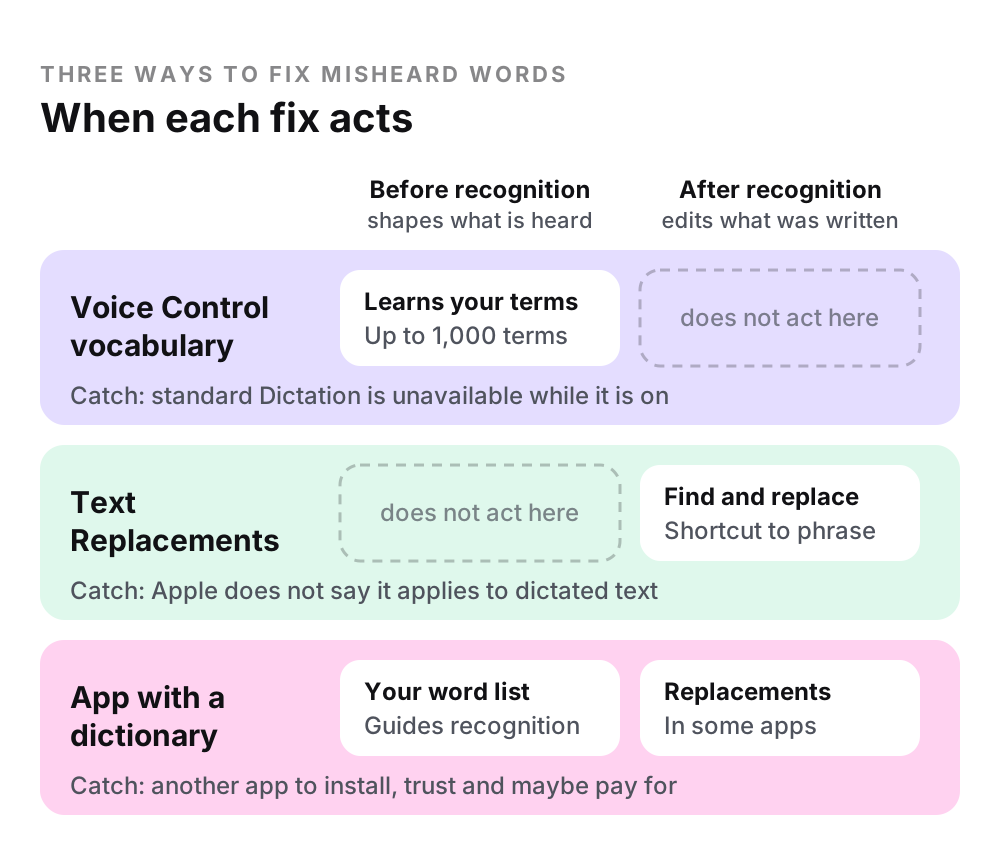
Hints suit names and jargon because they act while the audio is being interpreted. If Dictation writes "Shivon" one day and "Chevonne" the next, a replacement needs an entry for every variant, while a hint addresses the cause. Hints are not a guarantee: Superwhisper's documentation warns that too many vocabulary words can confuse the transcription model, so keep the list to terms you actually say.
Replacements are predictable and only touch what you listed. The strongest setups use both: hints for recognition, replacements for stubborn leftovers.
Which Mac dictation apps have a real custom dictionary?
Superwhisper, VoiceInk, Wispr Flow, Aqua Voice and Crodo all let you add your own words. They differ in whether those words act as recognition hints, replacements or both, and in whether the app learns from your corrections.
| App | How your words are used | Learns from corrections | Also offers |
|---|---|---|---|
| Superwhisper | Sent alongside your audio as recognition hints | Not documented | Replacements that run after transcription |
| VoiceInk | Vocabulary guides supported transcription models and AI enhancement | Yes, Auto Learn suggests entries via an AI provider | Word Replacements after you dictate |
| Wispr Flow | Dictionary words help it recognise names and jargon | Yes, an auto-learn setting on Mac and Windows | Corrections, and import of up to 1,000 items on Mac and Windows |
| Aqua Voice | Dictionary for names, acronyms and invented words | Not documented | Replacements; an expanded dictionary on Pro |
| Crodo | Sent to the speech engine as recognition hints before transcription | Yes, offers to learn a word you correct | Free, but English only and cloud-processed |
Prices, platforms and privacy differ more than dictionaries do, so compare them in our roundup of the best AI dictation apps for Mac. For code identifiers, see voice coding on a Mac.
Questions
How many words can you add to Voice Control vocabulary on a Mac?
Apple's macOS 27 guide says you can add up to 1,000 vocabulary terms to Voice Control. A term can be a word or a phrase, typed one at a time or imported from a text file with one term per line. You can keep a separate list for each supported language, though Apple does not say whether the limit is per language.
Why does Mac dictation keep getting names wrong?
Speech recognition picks the most likely spelling of what it hears, and unusual names and jargon are rarely the most likely option. Standard macOS Dictation has no word list to change that. Your options are Voice Control's vocabulary, Contacts, Text Replacements applied afterwards, or a dictation app with a custom dictionary.
Can I switch Voice Control on only when I need my vocabulary?
Yes. Turn Voice Control on and off in System Settings > Accessibility > Voice Control, or ask Siri to "Turn on Voice Control". While it is on, standard Dictation is unavailable and Voice Control listens for commands as well as text. Turn it off and standard Dictation is available again.
Does Learn Spelling add words to Mac dictation?
Apple does not say it does. Choosing Learn Spelling after Control-clicking a word adds it to the spelling dictionary, so it is no longer flagged as misspelled in any document. Apple describes this as a spell check feature and never connects it to Dictation, so expect fewer red underlines, not better recognition.
Does macOS 27 recognise names better?
MacRumors reports that macOS 27 Golden Gate brought an improved on-device dictation model, more accurate with spelling, punctuation and capitalisation, on Macs with an M3 or later chip and at least 12GB of memory. M1 and M2 Macs do not get it. Neither MacRumors nor Apple's Dictation guide mentions a custom vocabulary, so unusual names may still come out wrong.
Can I move my Voice Control vocabulary to another Mac?
Yes. In Voice Control settings, open the Advanced Actions menu in the lower-right corner, choose Export Vocabulary, pick a file format and language, and save. On the other Mac, choose Import Vocabulary from the same menu and select the file. Plain text files with one term per line import too.
Sources
- Apple: Use a custom vocabulary with Voice Control on Mac (macOS 27)
- Apple: Dictate messages and documents on Mac (macOS 27)
- Apple: Use Voice Control commands to interact with your Mac (macOS 27)
- Apple: Turn Voice Control on or off on Mac (macOS 27)
- Apple: Replace text and punctuation in documents on Mac (macOS 27)
- Apple: Get typing suggestions and correct mistakes on Mac (macOS 27)
- Apple: Siri, Dictation & Privacy
- Apple Community: Can I add custom words to Dictation? (2017)
- Apple Community: Dictation and smart quotes (2021)
- MacRumors: macOS 27 Golden Gate roundup
- Superwhisper docs: Vocabulary
- VoiceInk docs: Vocabulary
- VoiceInk docs: Word Replacements
- VoiceInk docs: Dictionary Auto Learn
- Wispr Flow docs: Teach Flow your words with the dictionary
- Aqua Voice guide: Dictionary
- Aqua Voice guide: Replacements
- Aqua Voice pricing
Keep reading
Mac dictation not working?
What to check when Dictation will not start, stops early or mishears you.
Read →Mac dictation commands
Every spoken punctuation, formatting and capitalisation command for Mac dictation.
Read →Best AI dictation apps for Mac
Ten apps compared on price, free limits, privacy and platforms.
Read →