Mac Dictation Commands: The Complete List for macOS 27
Every phrase Apple documents for dictating punctuation, line breaks, capitals and symbols on a Mac, taken from Apple's macOS 27 guide, plus which editing commands need Voice Control instead.
By the Crodo team · Updated · 9 min read
What are the Mac dictation commands?
Mac dictation commands are phrases such as “comma”, “new paragraph” and “caps on” that Dictation turns into punctuation, formatting or symbols instead of typing the words. Apple's macOS 27 guide lists the same commands as macOS Tahoe 26. Editing by voice, such as replacing or deleting words, needs Voice Control instead.
How do you use dictation commands on a Mac?
Start Dictation, then say the command where you want the punctuation or formatting. Apple says the commands are always available while you are dictating.
- 1
Turn on Dictation in System Settings > Keyboard > Dictation.
- 2
Click where the text should go, then press the Microphone key (if you have one) or your Dictation shortcut, or choose Edit > Start Dictation.
- 3
Speak, saying a command such as “comma” where you want it.
- 4
Stop with Escape, the Microphone key or your shortcut. Apple says Dictation also stops after 30 seconds without speech.
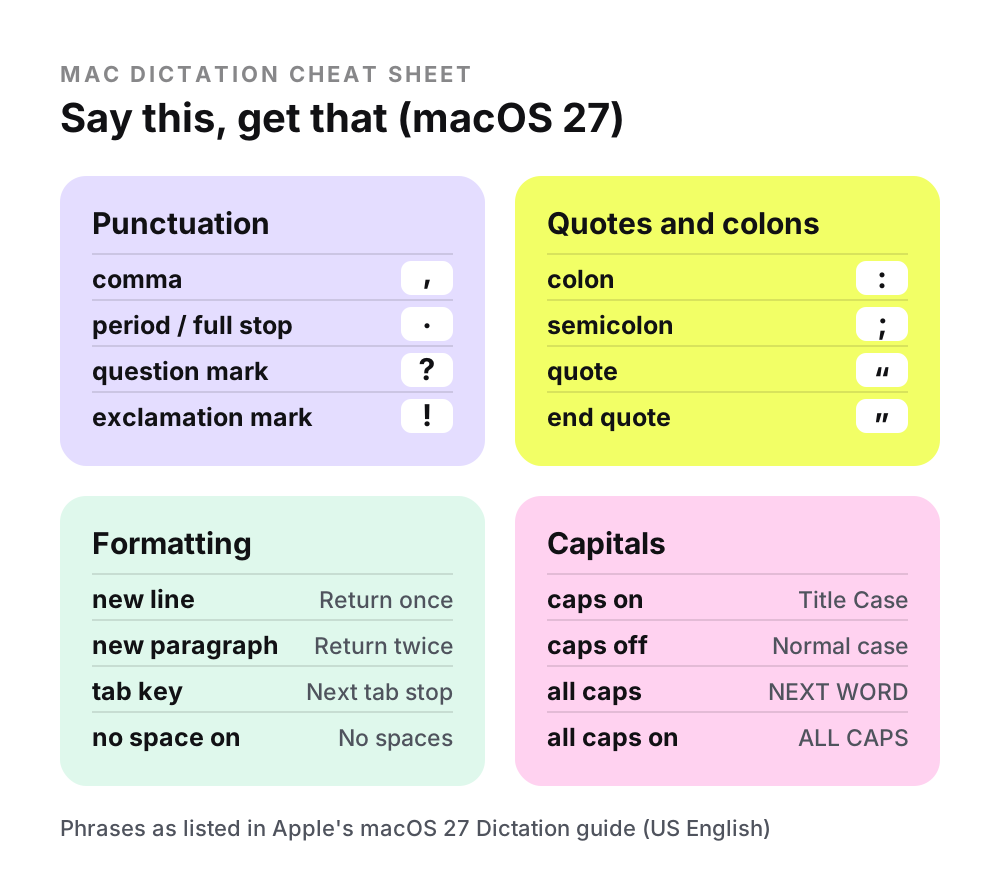
Every Dictation phrase in this article comes from Apple's Commands for dictating text on Mac for macOS 27 Golden Gate, released on 14 September 2026. Apple's list is identical to its macOS Tahoe 26 version.
What are the punctuation commands for Mac dictation?
Say the mark's name: “comma”, “question mark”, “exclamation mark”, “colon” or “semicolon”. For a full stop, Apple accepts “period”, “point”, “dot” or “full stop”. Its macOS 27 guide lists 22 punctuation commands.
| Say | You get |
|---|---|
| comma | , |
| period, point, dot or full stop | . |
| question mark | ? |
| exclamation mark | ! |
| colon | : |
| semicolon | ; |
| ellipsis | … |
| hyphen | - |
| dash | – (an en dash) |
| apostrophe | An apostrophe |
Brackets and quotation marks
| Say | You get |
|---|---|
| open parenthesis / close parenthesis | ( ) |
| open square bracket / close square bracket | [ ] |
| open brace / close brace | { } |
| open angle bracket / close angle bracket | < > |
| quote / end quote | “ ” |
| begin single quote / end single quote | Single quotation marks |
“Hyphen” gives a short hyphen (-), while “dash” gives an en dash (–). “Quote” only opens a quotation; “end quote” closes it.
How do you say new line or new paragraph in Mac dictation?
Say “new line” for a new line (like pressing Return once) or “new paragraph” for a new paragraph (like pressing Return twice). Apple notes the breaks appear when you finish dictating, not while you are still speaking.
| Say | What it does |
|---|---|
| new line | Starts a new line, the same as pressing Return once. |
| new paragraph | Starts a new paragraph, the same as pressing Return twice. |
| tab key | Moves the cursor to the next tab stop. |
| no space on | Formats the next phrase without spaces. |
| no space off | Resumes default spacing. |
| numeral | Formats the next phrase as a number. |
| roman numeral | Formats the next phrase as a Roman numeral. |
How do you capitalise words with Mac dictation?
Say “caps on” for Title Case and “caps off” to stop. “All caps” capitalises the next word only, while “all caps on” and “all caps off” wrap a longer phrase in capitals.
| Say | What it does |
|---|---|
| caps on | Formats the next phrase in Title Case. |
| caps off | Resumes the default case lettering. |
| all caps | Formats the next word in ALL CAPS. |
| all caps on | Formats the next phrase in ALL CAPS. |
| all caps off | Resumes the default case lettering. |
Apple's Dictation list has no commands for bold, italics or lower case. In Voice Control, Apple says “Show commands” lists text formatting commands when you are writing a document.
How do you type symbols, maths signs and currency by voice?
Say the symbol's name, often ending in “sign”: “at sign” gives @, “percent sign” gives % and “euro sign” gives €. Apple groups these into typography, maths, currency and intellectual property commands.
| Say | You get |
|---|---|
| ampersand | & |
| asterisk | * |
| at sign | @ |
| backslash | \ |
| forward slash | / |
| caret | ^ |
| center dot | A centred dot |
| large center dot | ● |
| degree sign | ° |
| hashtag or pound sign | # |
| percent sign | % |
| underscore | _ |
| vertical bar | | |
Maths, currency and legal marks
| Say | You get |
|---|---|
| plus sign | + |
| minus sign | - |
| multiplication sign | x |
| equal sign | = |
| greater than sign | > |
| less than sign | < |
| dollar sign | $ |
| cent sign | ¢ |
| pound sterling sign | £ |
| euro sign | € |
| yen sign | ¥ |
| copyright sign | © |
| registered sign | ® |
| trademark sign | ™ |
Careful with “pound”: in Apple's US list, “pound sign” gives #. For £, say “pound sterling sign”. Apple's guide shows a plain x for “multiplication sign” and lists no division sign.
Can you dictate emoji on a Mac?
Yes, in supported languages: say the emoji's name followed by “emoji”, such as “heart emoji” or “car emoji”. Apple lists 33 language and region combinations, including US, UK, Australian, Canadian and Indian English.
Some English variants that support Dictation, including Irish, New Zealand and South African English, are not on Apple's emoji list, so check your dictation language if “heart emoji” comes out as words.
Text emoticons
| Say | You get |
|---|---|
| smiley face | :-) |
| frowny face | :-( |
| winky face | ;-) |
| cross-eyed laughing face | XD |
Does Mac dictation add punctuation automatically?
Yes. In supported languages, Dictation inserts commas, full stops and question marks as you speak. To stop it, turn off Auto-punctuation in System Settings > Keyboard > Dictation.
- 1
Choose Apple menu > System Settings, then click Keyboard in the sidebar.
- 2
Go to Dictation.
- 3
Turn off Auto-punctuation. Turn it on again the same way.
Apple names only those three marks, so say the command for anything else, such as an exclamation mark or quotation marks. Apple says the commands are always available while you dictate, so you can still say them with Auto-punctuation on. Apple's Feature Availability page lists Auto-punctuation for 33 language and region combinations, against 63 for Dictation itself.
The same page lists “More advanced Dictation” as an Apple Intelligence feature for English. MacRumors reports that macOS 27's improved dictation makes fewer punctuation and capitalisation mistakes, but needs an M3 or later chip and at least 12GB of memory. How AI cleanup differs from built-in punctuation is covered in our Apple Dictation comparison.
What is the difference between Dictation and Voice Control commands?
Dictation commands only insert punctuation, symbols, emoji and formatting. Voice Control adds commands to edit text and control your Mac, but Apple says standard Dictation is unavailable while Voice Control is on: you dictate through Voice Control instead.
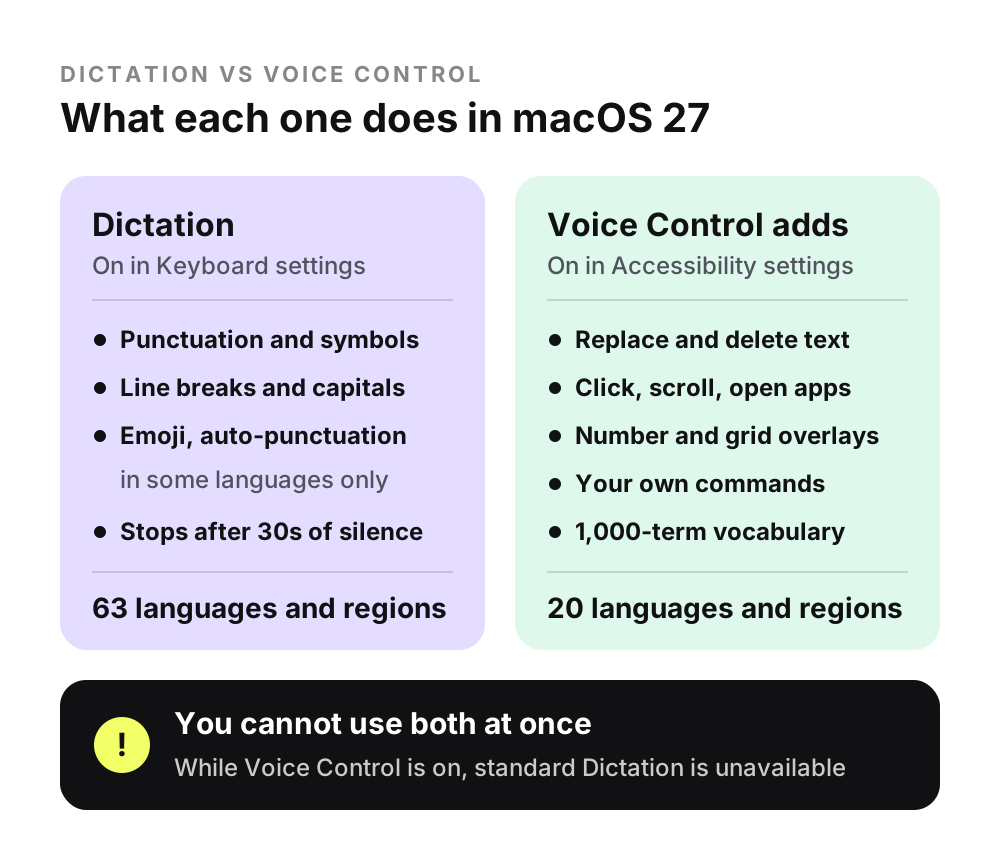
Apple's Dictation list has no commands for selecting, deleting or replacing text. Voice Control does: Apple's examples include “Replace cat with dog”, and “Show numbers” followed by “Delete” or “Uppercase” and an item's number. It also handles “Open Mail”, “Scroll down” and “Click Done”.
- 1
Choose Apple menu > System Settings, then click Accessibility.
- 2
Click Voice Control and turn it on.
- 3
Say “Show commands” to see what you can say in the app you are using.
Why does Mac dictation type the command instead of doing it?
Dictation acts only on the phrases Apple lists for your dictation language, plus emoji names where supported. Editing phrases such as “delete that” are not on that list, and some US and UK wording differs.
- Not a Dictation command. Apple's list has no editing commands; use the keyboard or Voice Control.
- Different wording. Apple's UK and Australian guides word some brackets and symbols differently (below), so check the edition for your region.
- Wrong or unsupported language. Check the language and region in Keyboard > Dictation, one of Apple's own troubleshooting steps.
- Voice Control is on. Standard Dictation is unavailable, so Voice Control's commands apply.
- Pending line break. Apple says new lines and paragraphs appear once you stop dictating.
| Apple's US list | Apple's UK list | You get |
|---|---|---|
| open parenthesis / close parenthesis | open bracket / close bracket | ( ) |
| open brace / close brace | open curly bracket / close curly bracket | { } |
| hashtag or pound sign | hashtag sign | # |
| equal sign | equals sign | = |
Apple's Australian guide uses the US wording, except “hash symbol” for #. The UK and Australian lists also spell “centre dot” and “per cent sign” the British way.
If Dictation is not responding at all, that is a different problem: see why Mac dictation is not working.
How do you see the full list of commands for your language?
Open Apple's “Commands for dictating text on Mac” guide in your country's edition, which lists the phrases in that language. For Voice Control, the full list is in System Settings > Accessibility > Voice Control > Commands.
- 1
Open Apple's guide and choose macOS 27 Golden Gate from the version menu.
- 2
Switch country with the region selector at the foot of the page. The French edition lists “virgule” for a comma.
- 3
For Voice Control, click Commands in Voice Control settings and use the search field. Click the Dictation mode command to see the characters you can enter and what to say.
If the problem is a name or term Dictation keeps mishearing rather than a command, see how to add custom words to Mac dictation.
Questions
What do you say for a full stop in Mac dictation?
Say “period”, “point”, “dot” or “full stop”: Apple's macOS 27 guide lists all four. If Auto-punctuation is on and your language supports it, Dictation also adds full stops, commas and question marks by itself, so you mainly need the command when it misses one.
How do I delete a word with Mac dictation?
Standard Dictation has no delete command in Apple's list, so use the keyboard or Voice Control. With Voice Control on, say “Show numbers” in a text field, then “Delete” followed by the number of the line or word, or swap words with a command such as “Replace cat with dog”. Standard Dictation is unavailable while Voice Control is on.
Did macOS 27 add new dictation commands?
No. Apple's macOS 27 Golden Gate version of “Commands for dictating text on Mac” lists exactly the same commands as its macOS Tahoe 26 version. The change MacRumors reports is accuracy: an improved model with fewer spelling, punctuation and capitalisation mistakes, on Macs with an M3 or later chip and at least 12GB of memory.
How do I type a £ sign with Mac dictation?
Say “pound sterling sign”. In Apple's US list, “pound sign” gives # instead (Apple pairs it with “hashtag”), while Apple's UK list uses “hashtag sign” and its Australian list “hash symbol” for #. The other currency commands Apple lists are “dollar sign”, “cent sign”, “euro sign” and “yen sign”.
Can I add my own commands to Mac dictation?
Apple documents no way to add commands to standard Dictation. Voice Control can: in System Settings > Accessibility > Voice Control > Commands, click the add button, type a “When I say” phrase and choose an action, such as pasting text. Saying “Make this speakable” opens a window to create one while you work.
Sources
- Apple: Commands for dictating text on Mac (macOS 27)
- Apple UK: Commands for dictating text on Mac (macOS 27)
- Apple Australia: Commands for dictating text on Mac (macOS 27)
- Apple: Commands for dictating text on Mac (macOS Tahoe 26)
- Apple France: Commands for dictating text on Mac (macOS 27)
- Apple: Dictate messages and documents on Mac (macOS 27)
- Apple: If Dictation on Mac doesn't work as expected (macOS 27)
- Apple: Use Voice Control commands to interact with your Mac (macOS 27)
- Apple: Customize Voice Control on Mac (macOS 27)
- Apple: Use a custom vocabulary with Voice Control on Mac (macOS 27)
- Apple: Accessibility features for mobility on Mac (macOS 27)
- Apple: macOS Golden Gate Feature Availability
- MacRumors: macOS 27 Golden Gate roundup
Keep reading
Mac dictation not working?
What to check when Dictation will not start, stops listening or mishears you.
Read →Add custom words to Mac dictation
How to get names and jargon right when Dictation keeps mishearing them.
Read →Best AI dictation apps for Mac
Ten Mac dictation apps compared on price, free limits, privacy and platforms.
Read →