Mac dictation not working? Fixes for every symptom on macOS 27
Most Apple Dictation problems fit one of six symptoms, and each has its own likely cause. Find your symptom, follow the steps in order, and most fixes take a few minutes in System Settings.
By the Crodo team · Updated · 9 min read
Why is my Mac dictation not working?
To fix Mac dictation that is not working, open Apple menu > System Settings > Keyboard and check that Dictation is on, the shortcut matches the key you press, and the right microphone is selected. If it stops by itself, that is by design: on macOS 27, Apple says dictation stops after 30 seconds without detected speech.
Which Mac dictation problem do you have?
Mac dictation problems fall into six symptoms: it stops by itself, will not start, is greyed out, types nothing, fails in one app, or mishears you. Each has a different cause and a different first fix.
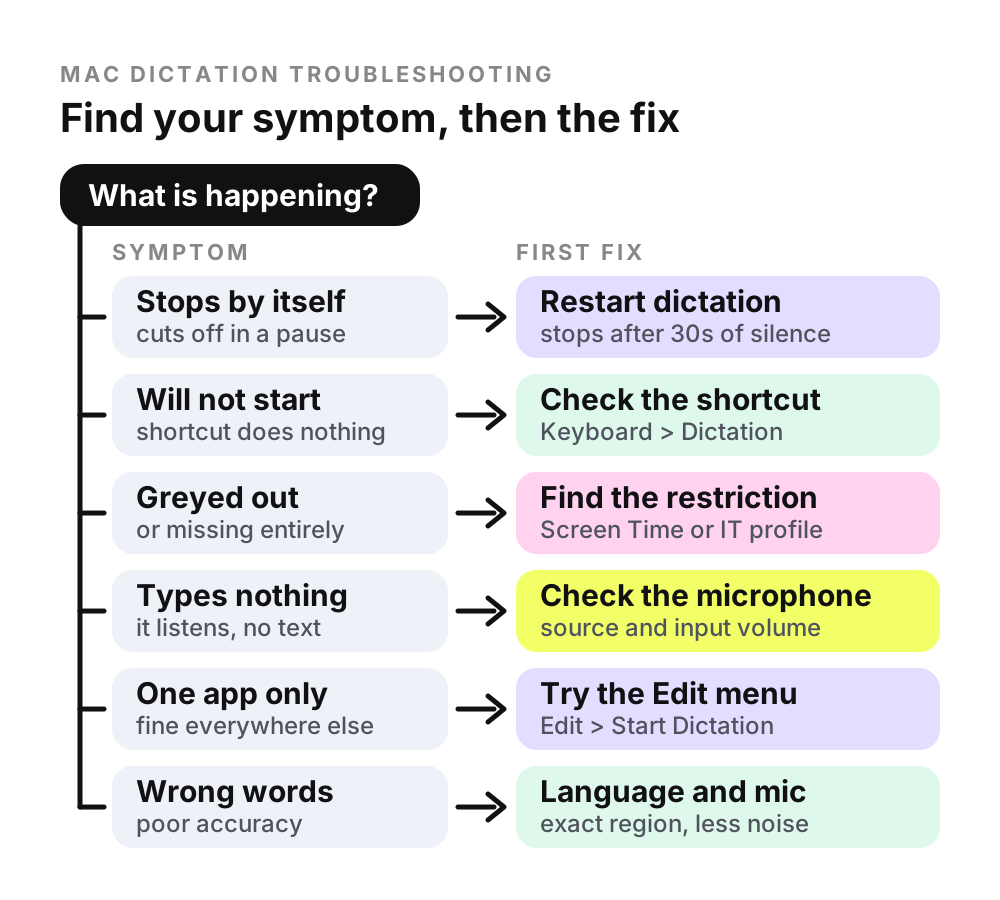
The steps follow Apple's macOS 27 guide. macOS 27 Golden Gate came out on 14 September 2026 and runs only on Macs with Apple silicon.
Where are the dictation settings on macOS 27?
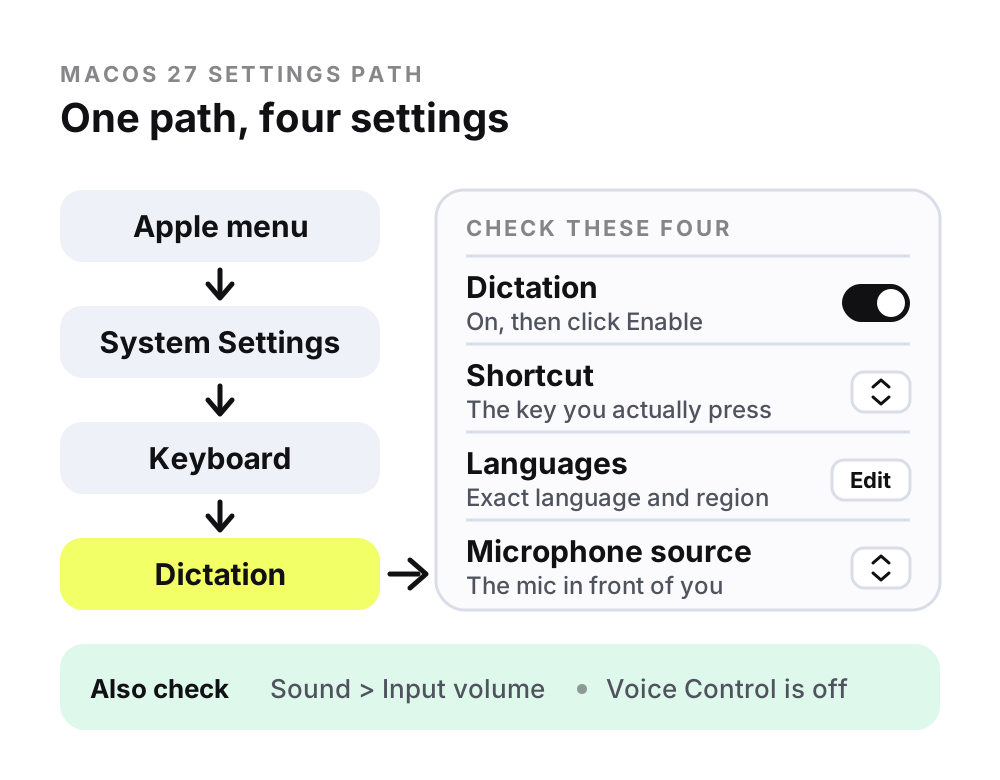
Choose Apple menu > System Settings, click Keyboard in the sidebar, then go to Dictation. That section holds the on/off switch, the shortcut, your languages and the microphone source, the settings most fixes below come back to.
- 1
Choose Apple menu > System Settings, then click Keyboard in the sidebar.
- 2
Go to Dictation and turn it on, then click Enable if asked.
- 3
Check the Shortcut pop-up menu, the Languages list (click Edit) and the Microphone source pop-up menu.
- 4
Read the text below Dictation (it appears once Dictation is on). It says whether general dictation is processed on your Mac rather than sent to Siri servers.
Why does Mac dictation stop after 30 seconds?
It is designed to. Apple's macOS 27 guide says dictation stops automatically when no speech is detected for 30 seconds, and that you can dictate text of any length without a timeout. The 30 seconds measures silence, not total length.
| What happens | Result |
|---|---|
| Escape, the Microphone key or your shortcut | Stops |
| No speech detected for 30 seconds | Stops automatically |
| You keep talking for a long time | No timeout, Apple says |
| You type while dictating (Apple silicon) | Keeps going, no need to stop |
So if dictation cuts off while you are still talking, your Mac may not be detecting your voice as speech. That points to the microphone: see the typing-nothing fixes.
Apple's guide lists no setting to change the 30-second stop. Your options are:
- Restart it. Press your shortcut or the Microphone key again.
- Voice Control. A separate accessibility feature that you pause and resume by saying “Stop listening” and “Start listening”, Apple says. Apple documents no silence stop for it, and it replaces standard Dictation while on.
- A hold-to-talk app. These record while you hold a key instead of watching for silence. See our Mac dictation app comparison.
What to do when the dictation shortcut does nothing
Confirm Dictation is on, check which shortcut is selected in Keyboard > Dictation, then try Edit > Start Dictation from the menu bar. If the menu works but the key does not, change the shortcut. If neither works, check that Voice Control is off.
- 1
Open Keyboard settings and confirm Dictation is on.
- 2
Check the Shortcut pop-up menu. For your own keys, choose Customize and press them (Apple's example is Option-Z).
- 3
If you use the Microphone key, press and release it. Apple says holding it activates Siri instead, if Siri is enabled.
- 4
In Notes or TextEdit, choose Edit > Start Dictation.
- 5
Turn off Voice Control in System Settings > Accessibility > Voice Control. Apple says standard Dictation is unavailable while it is on.
- 6
Turn Dictation off and on, then restart from Apple menu > Restart.
Why is dictation greyed out or missing on my Mac?
If the Dictation setting is greyed out or missing, check four things that can block it: a Screen Time restriction, a work or school management profile, Voice Control, and whether Apple offers dictation in your language and region.
| Cause | Where to check | What Apple says |
|---|---|---|
| Screen Time | Screen Time > Content & Privacy > Intelligence & Siri | Lists Siri & Dictation as content you can turn off |
| Work or school management | Ask your IT team | Admins can set whether users can use Siri and Dictation |
| Voice Control | Accessibility > Voice Control | Standard Dictation is unavailable while it is on |
| Language or region | Keyboard > Dictation > Languages | Not available in all languages or regions |
If the Mac belongs to a child in a Family Sharing group, a parent or guardian changes this in Screen Time. As of October 2026, Apple's feature availability page lists 63 language and region variants for Dictation, 15 of them English.
Why does Mac dictation listen but type nothing?
When dictation listens but types nothing, start with the microphone. Check the microphone source in Keyboard > Dictation, raise the input volume in Sound > Input, and check your internet connection, which Apple says you may need.
- 1
In Keyboard > Dictation, check Microphone source. Automatic picks the device you are most likely to use, Apple says, so choose the mic you are actually speaking into.
- 2
In System Settings > Sound, click Input, select that microphone and raise the input volume slider.
- 3
Make sure clothing or your hand is not covering the built-in microphone.
- 4
If the text below Dictation does not say your dictation is processed on your Mac, check your connection in Network settings.
- 5
If you set up more than one language, check the language shown next to the cursor and click it to switch.
Spoken line breaks (“new line”, “new paragraph”) appear only when you finish dictating, Apple says, so they have not failed. Apple's feature availability page also notes that on-device dictation requires a download of speech models, so a language you have just added may need a connection at first. More in our Mac dictation commands guide.
Why does dictation work in some apps but not others?
Apple says dictation works anywhere you can type, so when it fails in only one app, check focus, the shortcut and the app itself. Trying Edit > Start Dictation inside that app shows whether the shortcut is to blame.
- Focus. Dictation types at the insertion point, so click inside the text field first.
- The shortcut. If the Edit menu works but your keys do not, the app may use those keys itself. Pick another shortcut with Customize.
- Search boxes. Apple's on-device processing note covers general text such as messages and notes, not dictating in a search box, so search fields may still rely on Apple's servers. If only search fields fail, check your connection.
- The app. If it still fails there, update the app and report it to the developer.
How to make Mac dictation more accurate
Set the exact language and region you speak, cut background noise or use a headset microphone, and fix blue-underlined words as you go. MacRumors reports that the improved dictation model in macOS 27 needs an M3 or later chip and at least 12GB of memory.
- Language and region. English (United Kingdom), English (India) and English (United States) are separate options.
- Microphone. Apple suggests speaking clearly at a moderate volume and using a headset microphone in noisy or echoey rooms.
- Blue underlines. Apple underlines ambiguous words in blue (“flour” for “flower”). Click one to pick an alternative.
- Names and jargon. Apple documents a custom vocabulary (up to 1,000 terms) for Voice Control, not for standard Dictation: see how to add custom words.
| Mac | Dictation on macOS 27 |
|---|---|
| M3 or later, 12GB memory or more | Improved on-device model |
| M3 or later, under 12GB | No improved model |
| M1 or M2 | No improved model |
| Intel | Cannot run macOS 27 |
MacRumors reports these requirements and says the improved model makes fewer spelling, punctuation and capitalisation mistakes. Apple's dictation guide does not list them.
What if Mac dictation still does not work?
Update macOS, restart, and turn Dictation off and on again. Then test another microphone and another app. If nothing changes, contact Apple Support and list the checks you have already done.
- 1
In System Settings > General > Software Update, install anything waiting. The first update, macOS 27.0.1, arrived on 28 September 2026 with unspecified bug fixes.
- 2
Restart from Apple menu > Restart.
- 3
Turn Dictation off and on again in Keyboard settings.
- 4
Test with another microphone, such as a headset, in Notes.
Online forums suggest Terminal commands that quit speech processes or delete preference files. Apple's dictation pages do not include these steps, so this guide leaves them out.
Questions
Can I change how long Mac dictation waits before it stops?
Not in any way Apple documents. The macOS 27 guide says dictation stops automatically when no speech is detected for 30 seconds and lists no setting to change it. Restart it with your shortcut. If you pause a lot, a hold-to-talk app, which records while a key is held, avoids the cutoff.
Does Mac dictation work without an internet connection?
It depends on your language. Apple's macOS feature availability page lists the languages that support on-device dictation, which requires a download of speech models. To check your setup, open Keyboard settings and read the text below Dictation, which says whether general dictation is processed on your Mac. Apple's on-device note excludes search boxes, so dictation there may still need a connection.
Why did dictation stop working after a macOS update?
Recheck Keyboard > Dictation: confirm it is on, the shortcut is the one you press, and the microphone source is the mic you use. Then install any pending update (macOS 27.0.1 arrived on 28 September 2026), restart, and turn Dictation off and on. If Voice Control is on, standard Dictation will not run.
Is Apple Dictation more accurate on M3 Macs?
Reportedly yes, on macOS 27, if the Mac also has at least 12GB of memory. MacRumors reports that the improved on-device dictation model, which makes fewer spelling, punctuation and capitalisation mistakes, needs an M3 or later chip and 12GB or more. Apple's dictation guide does not list this. M1 and M2 Macs run macOS 27 without the improved model.
Does turning on Voice Control disable dictation?
Yes, it replaces standard Dictation. Apple says that when Voice Control is on, you use Voice Control to dictate text and standard macOS Dictation is not available. If your shortcut stopped responding after you tried Voice Control, turn it off in System Settings > Accessibility > Voice Control and try again.
Can a company block dictation on a work Mac?
Yes. Apple's Platform Deployment guide lists a device management setting that specifies whether users can use Siri and Dictation on a managed Mac. If dictation is greyed out on a work or school computer, ask your IT team rather than trying to get around the profile, because your organisation controls that setting.
Sources
- Apple: Dictate messages and documents on Mac (macOS 27)
- Apple: If Dictation on Mac doesn't work as expected (macOS 27)
- Apple: Use Voice Control commands to interact with your Mac (macOS 27)
- Apple: Use a custom vocabulary with Voice Control on Mac (macOS 27)
- Apple: Change Intelligence & Siri settings in Screen Time on Mac (macOS 27)
- Apple Platform Deployment: Parental Controls payload settings
- Apple: Change the sound input settings on Mac (macOS 27)
- Apple: Keep your Mac up to date (macOS 27)
- Apple: Shut down or restart your Mac (macOS 27)
- Apple: macOS Golden Gate feature availability (Dictation)
- MacRumors: macOS 27 Golden Gate roundup
- MacRumors: Apple Releases macOS Golden Gate 27.0.1 With Bug Fixes
Keep reading
Mac dictation commands
Every spoken command for punctuation, line breaks, capitals and emoji on macOS 27.
Read →Add custom words to Mac dictation
How to get names and jargon right when dictation keeps mishearing them.
Read →Best AI dictation apps for Mac
Ten dictation apps compared on price, privacy and free limits.
Read →